
Upgraded Customer Portal - FAQs
Once the new customer portal is accessible, you will receive an email invitation to create a new customer account. This email will include your new customer account number.
After creating your account, please:
Verify and update your contact information:
Name
Email
Phone number
Mailing address
Communication preferences
Important Notes:
Any payment methods saved and Auto Pay enrollments from the previous system will not be transferred to the new portal.
You will need to:
Add and save your preferred payment methods in My Wallet
Re-enroll in Auto Pay, if desired
The easiest way to create an account is through the email invitation you receive once the portal is live.
Click the link in the email to access the new portal and create your account.
Save the portal link for future use.
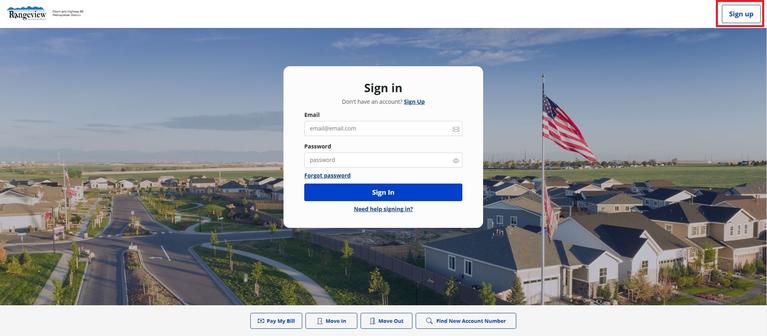
Alternatively, you may:
Click the “Sign Up” button in the upper-right corner of the new customer portal.
To create an account, you will need:
Email address
New account number
Provided in your January bill statement
On the left-hand side of your new bill, your account number is listed under the Account Information section
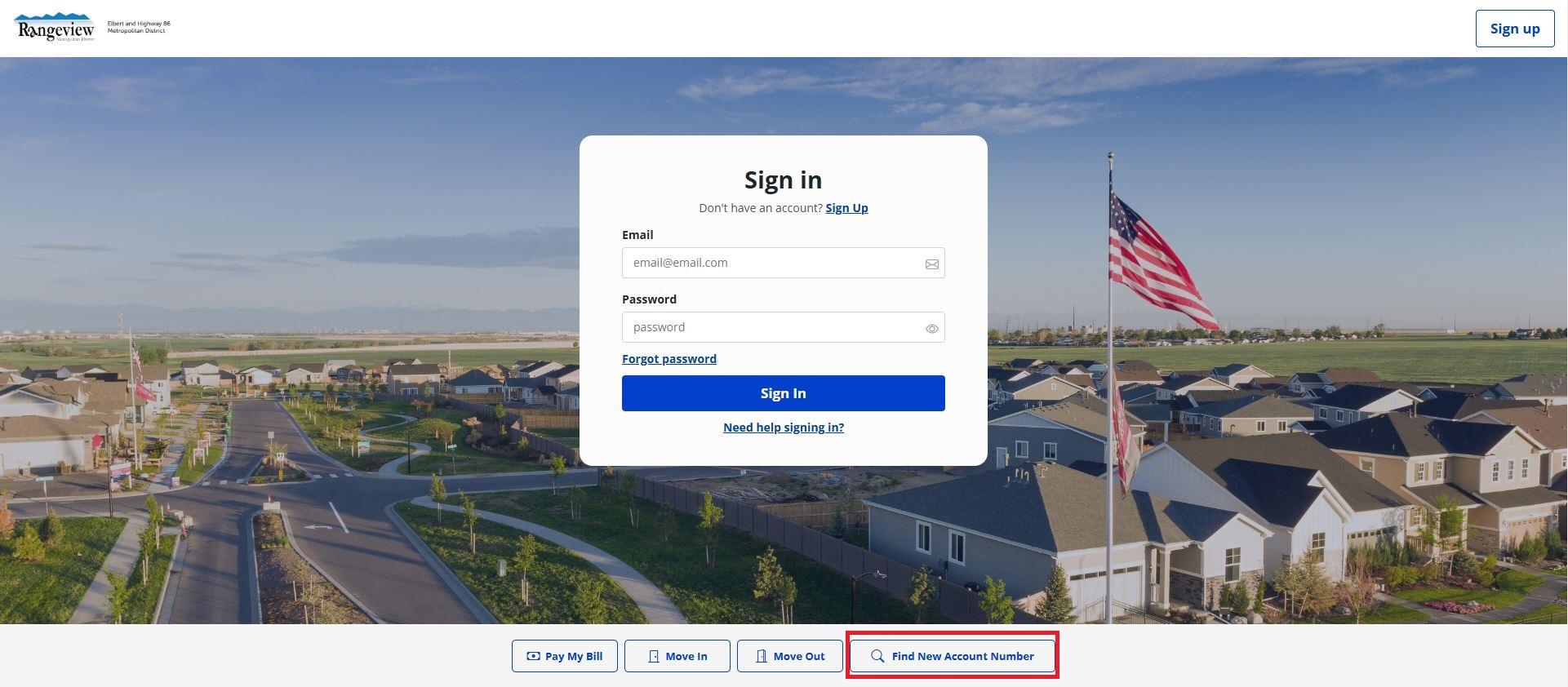
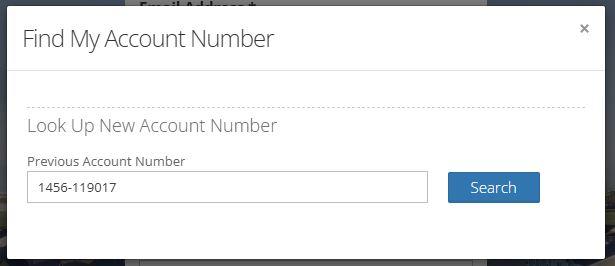
Or use the “Find My Account Number” link on the portal to search using your old account number
Amount from your last bill
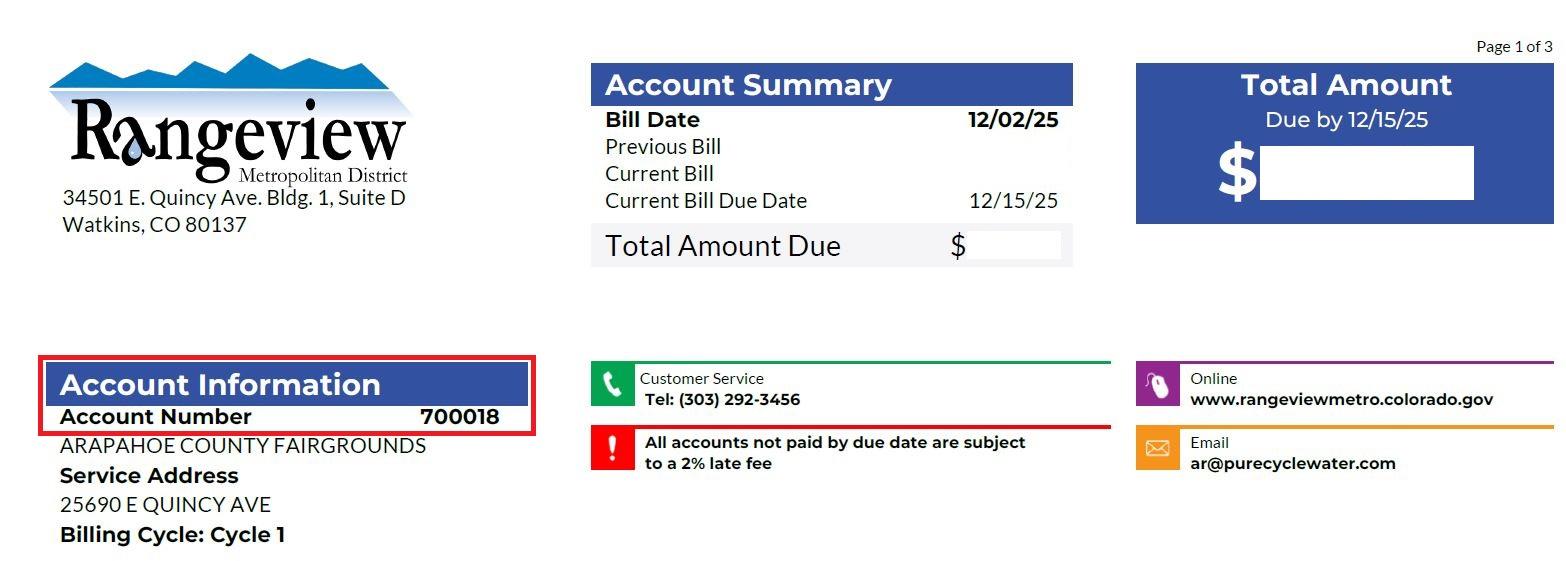
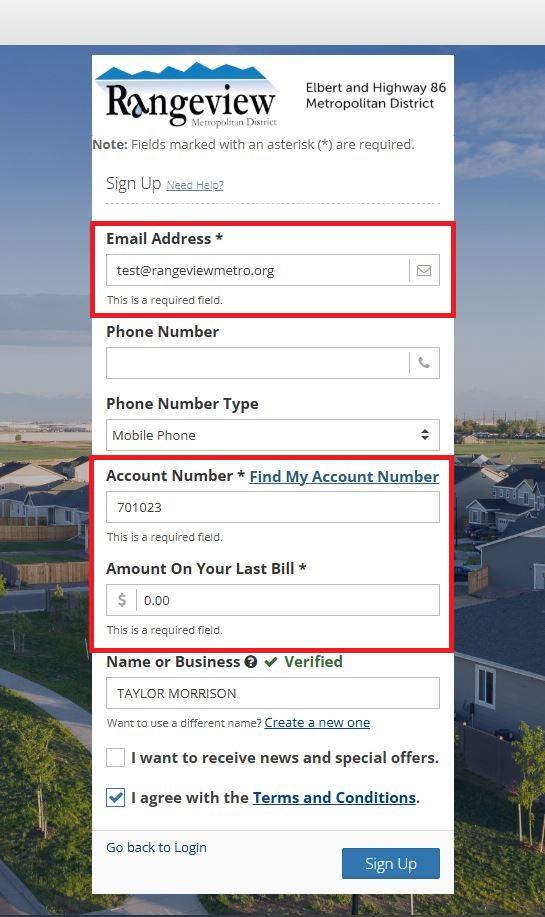
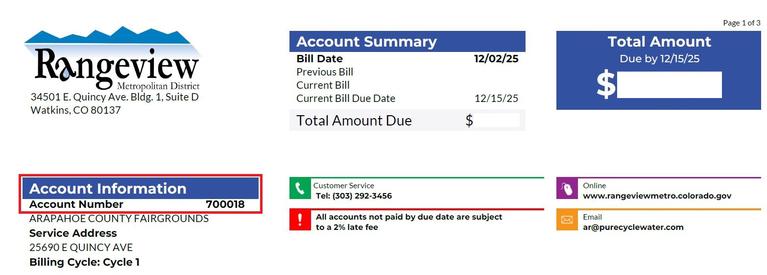
You can find your new account number in the following ways:
On your January bill statement
On the left-hand side of your new bill, your account number is listed under the Account Information section
By clicking “Find My Account Number” on the new customer portal and searching with your old account number
Once your account is created:
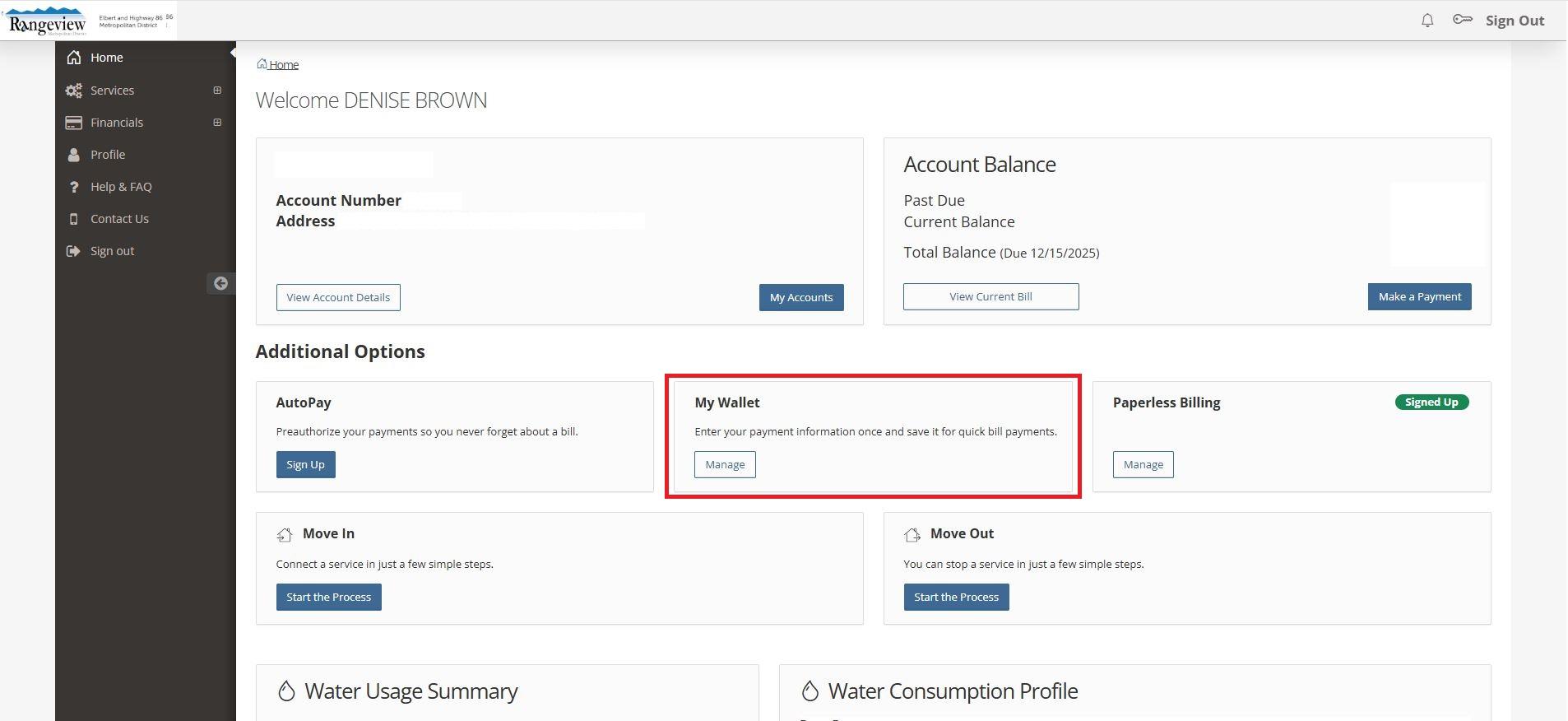
Go to your Account page
Open the My Wallet menu
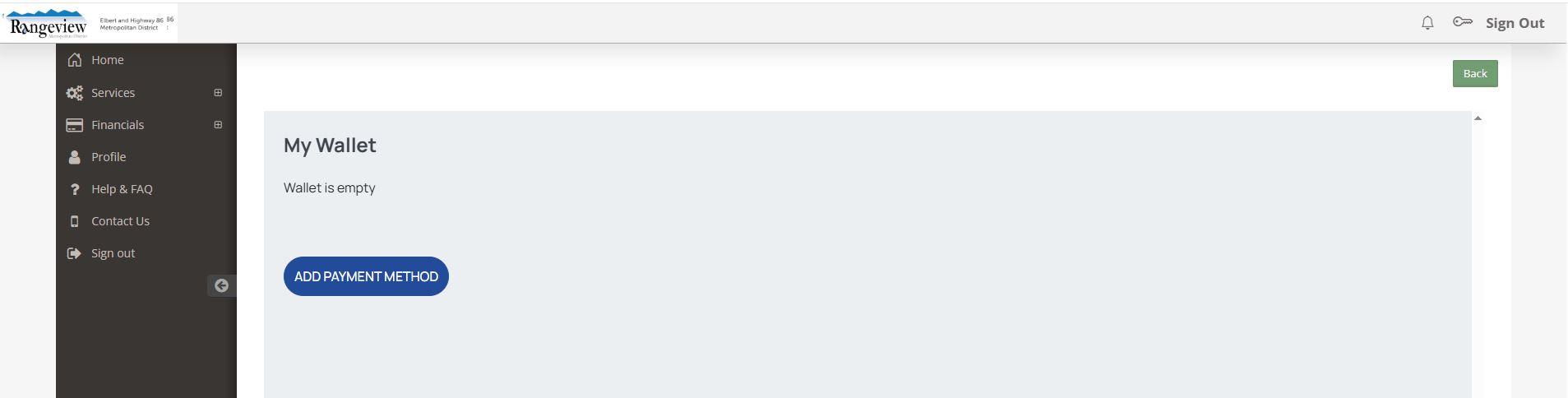
Click “Manage”, then “Add Payment Method”
Enter the required payment information
Additional details:
You may save up to five (5) payment methods.
If you use your bank’s bill pay service:
You must update your Rangeview Metro/E86 account number in your bank’s system
Your bank will not automatically update this information
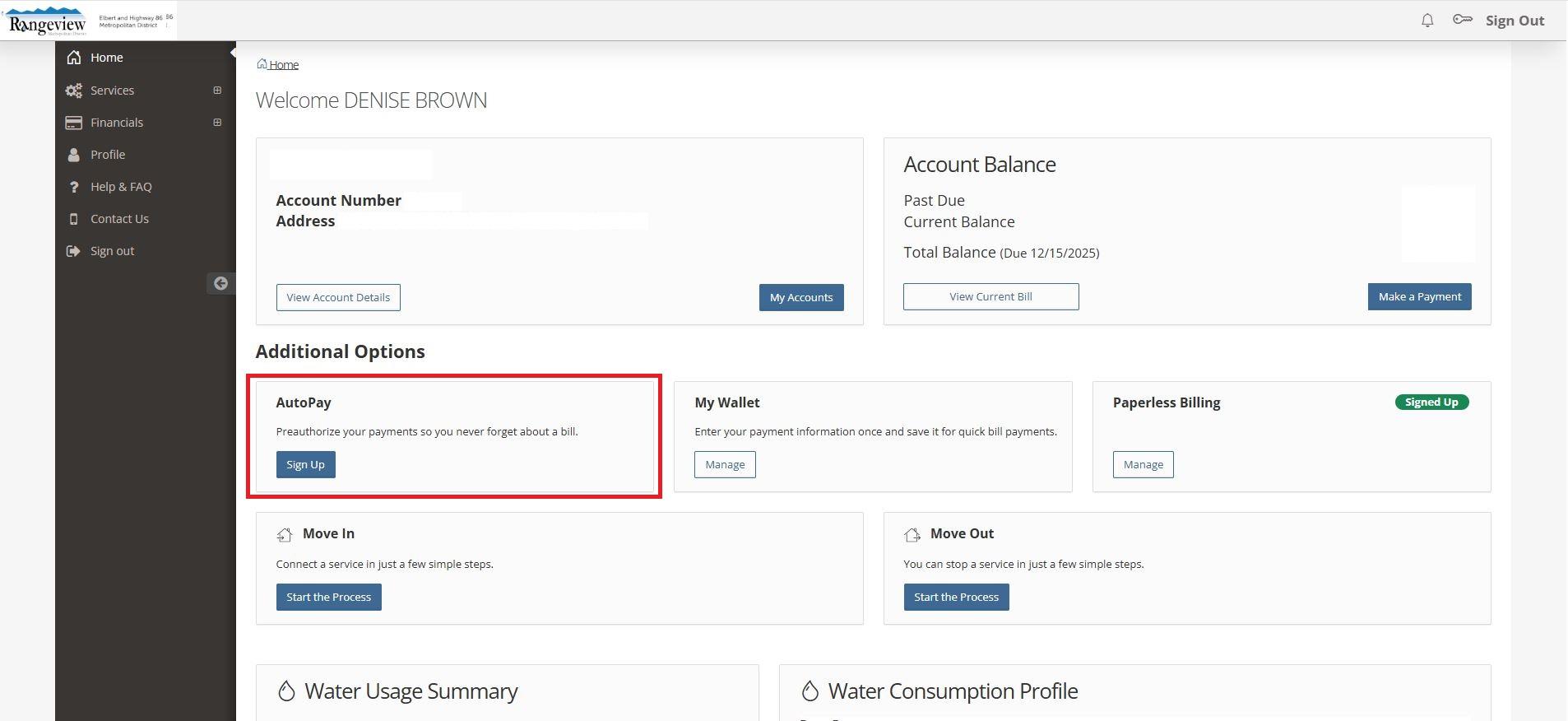
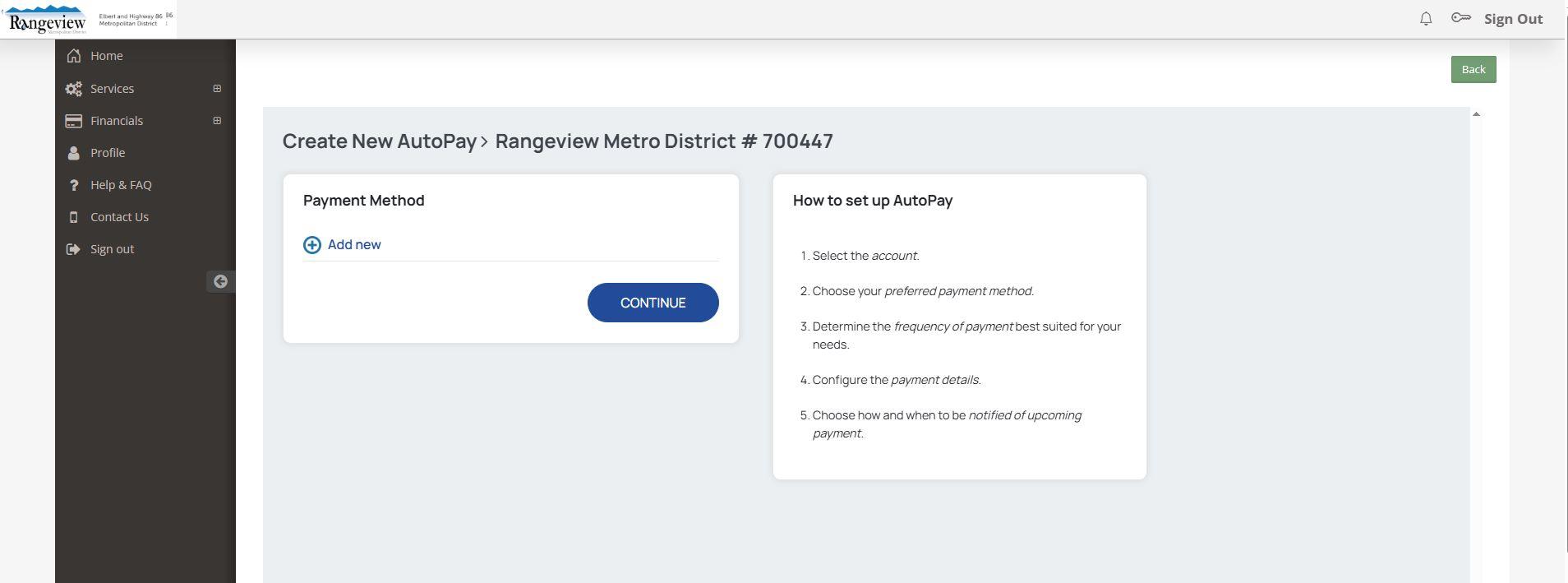
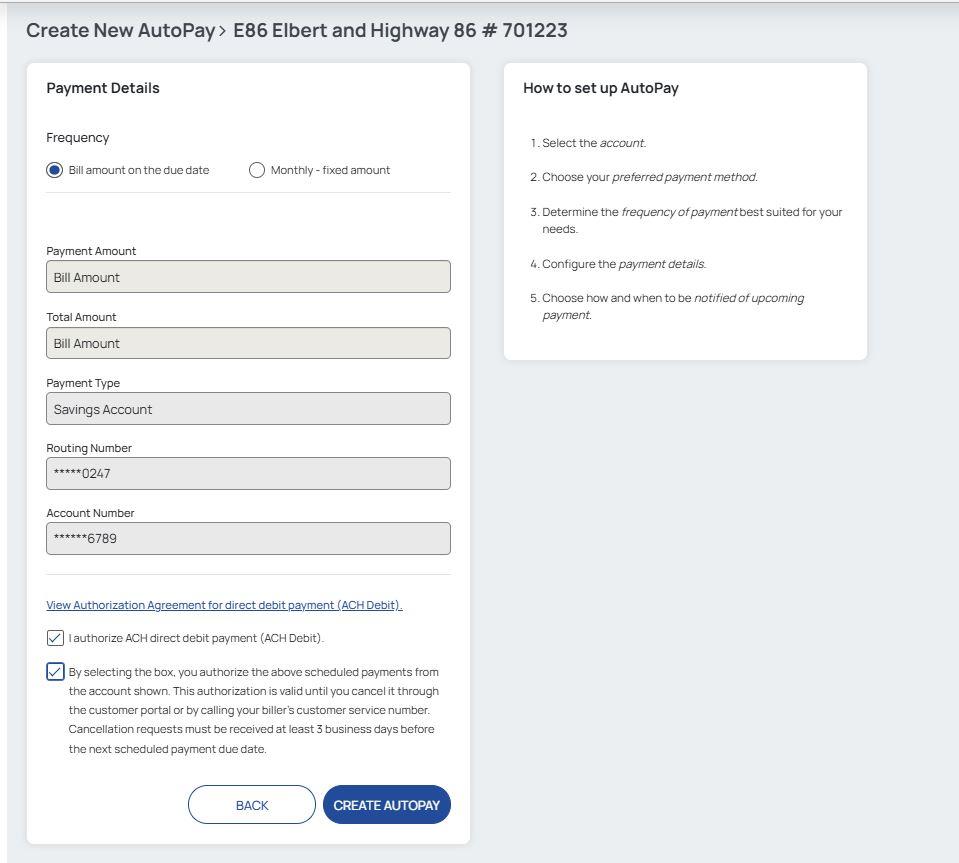
To enroll in Auto Pay:
Create your new account profile
Navigate to the Auto Pay section on your Account page
Click “Sign Up”
Follow the on-screen instructions
Note:
You must add a payment method in My Wallet before enrolling in Auto Pay.
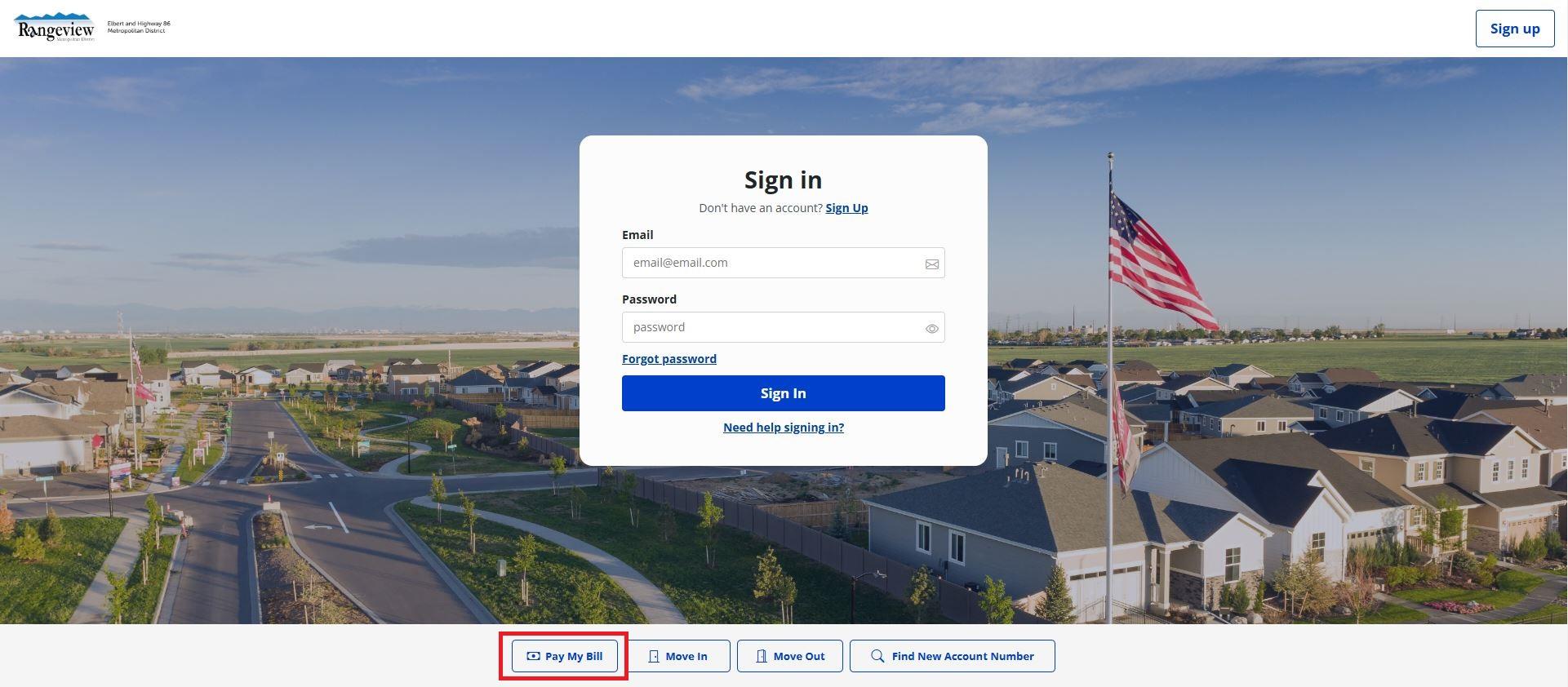
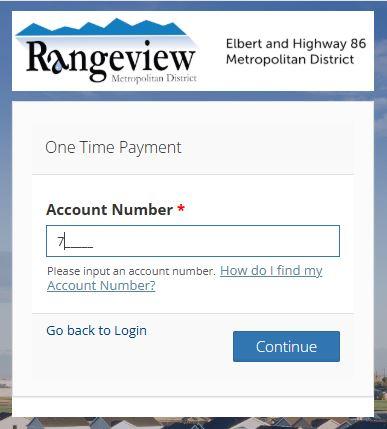
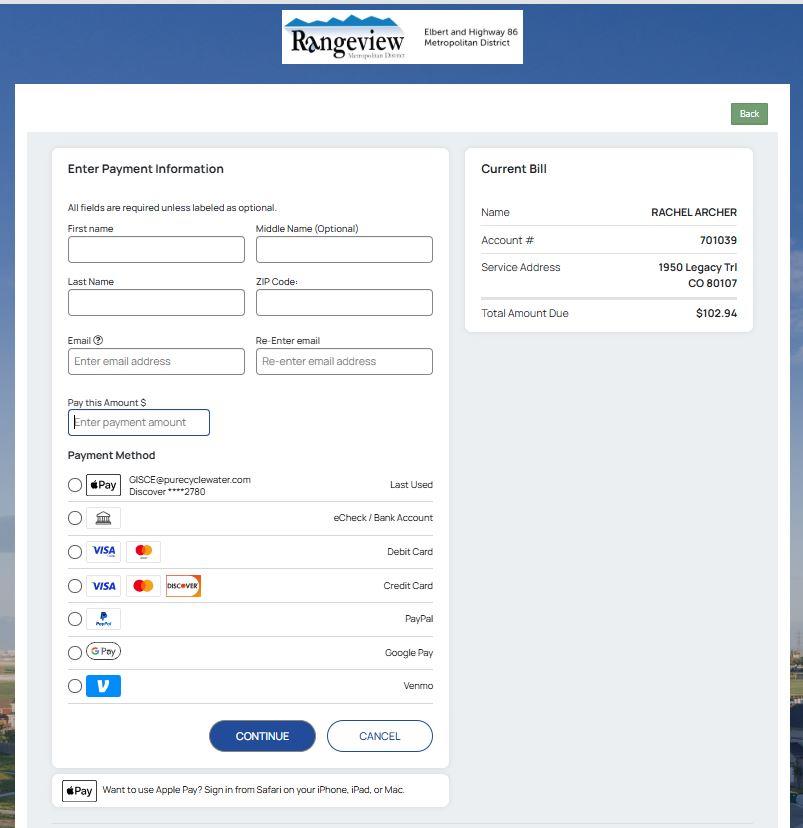
To make a one-time payment:
Go to the customer portal home page
Click “Pay My Bill” (located near the bottom of the page)
Enter your new customer account number
You must have your new account number to make a one-time payment
Enter the required payment information:
First and last name
Email address
Payment amount
Payment method
We’re here to help! Please reach out via email or phone.
Email: ar@purecyclewater.com
Phone: 303-292-3456